
AI integration · Pro
Let the AI join in. Exactly as far as you want.
Connect Claude or ChatGPT straight to your tasks — analyse, create, maintain, in conversation instead of by copy-paste. What the key may do, you tick off beforehand.
Three fields · up and running in 15 minutes · then the free plan continues automatically
- Servers in Germany
- GDPR-compliant
- Built in Germany
- Servers in Germany
- GDPR-compliant
- Built in Germany
How do I connect Claude or ChatGPT to my project management?
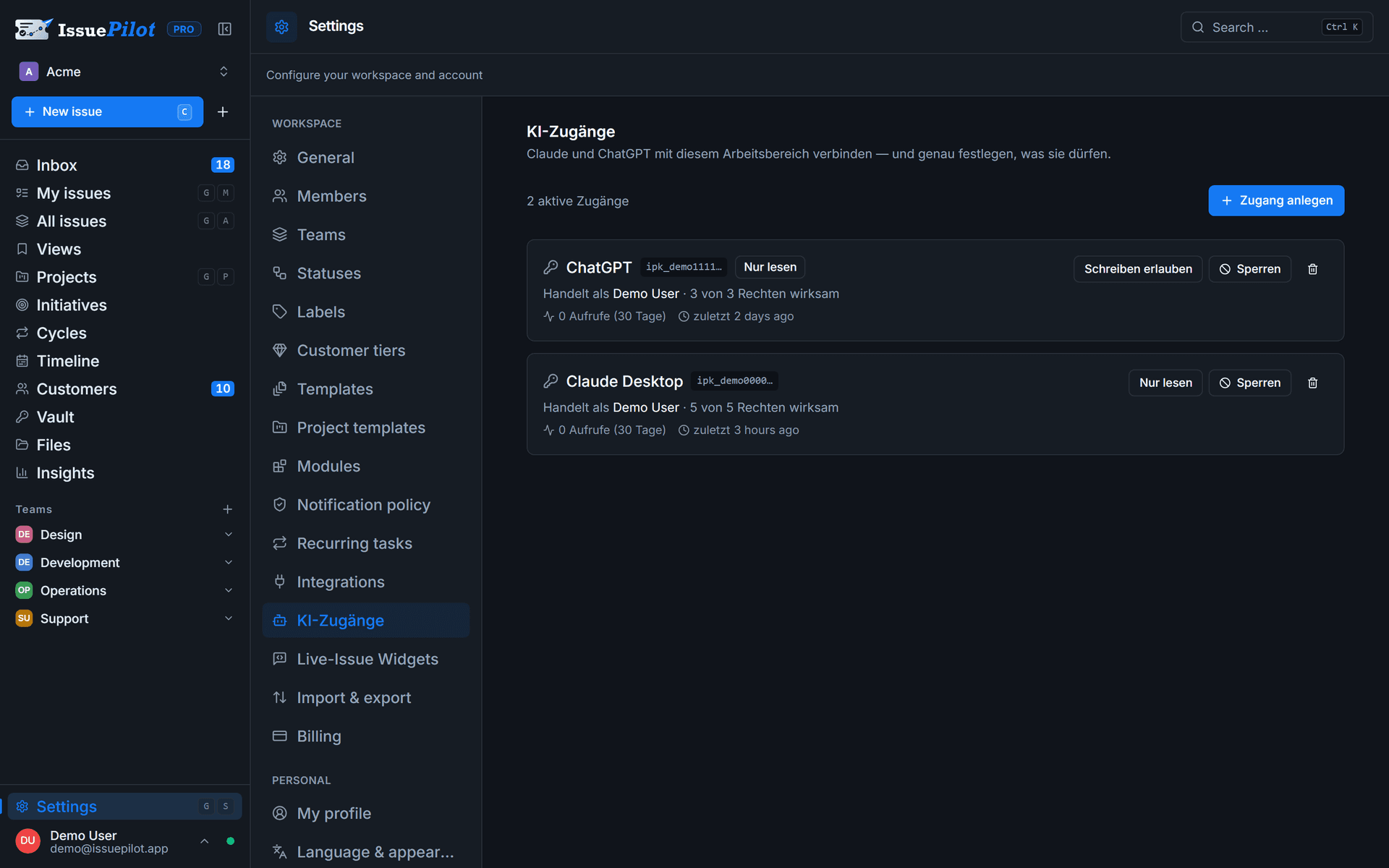
In IssuePilot you create a key under Settings → AI access and pick from 15 individual permissions while doing so. After that the AI talks to your workspace over the Model Context Protocol (MCP) or over a REST API — 29 operations, from “read tasks” to “create customer”.
The point of the feature is not that an AI is allowed to join in. Plenty of tools do that now. The point is that you can decide precisely what it may do — and that without the tick, the tool is not even offered to it.
What follows is not a documentation hunt: the key appears once, together with ready-to-copy instructions for Claude Code, Claude Desktop, ChatGPT and REST.
Permissions
Three things decide what a key can do.
Not just the boxes. Also the role of the person behind it, and the modules you actually have switched on.
The boxes you tick
When creating a key you pick from 15 individual permissions — from “read and analyse only” to full access. Nothing is preselected.
The role of the person behind it
A key can never do more than the person it acts for. If they are downgraded later, the key loses those permissions with them, immediately.
The modules you have switched on
With the customer module off, there are no customer functions for the AI. Permissions that end up doing nothing are marked as ineffective in the list — with the reason.
An AI only sees the tools it is allowed to use. What isn’t permitted doesn’t exist for it — it can neither call it nor suggest it.
Permanently blocked
Four things the AI cannot do — whatever you configure.
These limits don’t hang on a checkbox someone might tick by accident. They are fixed.
Open the password vault
Handing passwords to a language model means handing them to someone else's provider. The vault is unreachable for AI keys — full access included.
Invite members or assign roles
Otherwise a key could grant itself more rights by way of its owner.
See billing or the subscription
Payment details and plan sit outside what an AI gets to look at.
Delete permanently — unless you grant it separately
That permission is not part of full access. It has to be granted on its own, the task must be archived first, and the AI has to confirm the deletion explicitly.
When the AI goes off the rails
One click silences every write permission.
The read-only switch takes away the key's ability to write without losing your selection — so there is nothing to delete and reassemble later. On top of that: an expiry date and a request limit per key, and the option to restrict a key to individual teams from the outset.
- Read-only switch as the emergency brake, selection preserved
- A log of every call — refused attempts included
- A task's history records that an AI acted
- Expiry date and request limit per key
MCP and REST
Two ways in, one set of rules.
MCP serves Claude and the ChatGPT connectors. The REST API serves custom GPTs, your own scripts and automation services. Both run on the same code and the same permission checks — neither route can do more than the other.
- 29 operations: tasks, projects, customers, time entries, comments
- Address tasks by their readable key, for example “DEV-42”
- Status and priority in plain words: “In progress”, “high”
- Keys are stored only as a hash and work exclusively on the AI routes
Honestly scoped
IssuePilot has no AI built in.
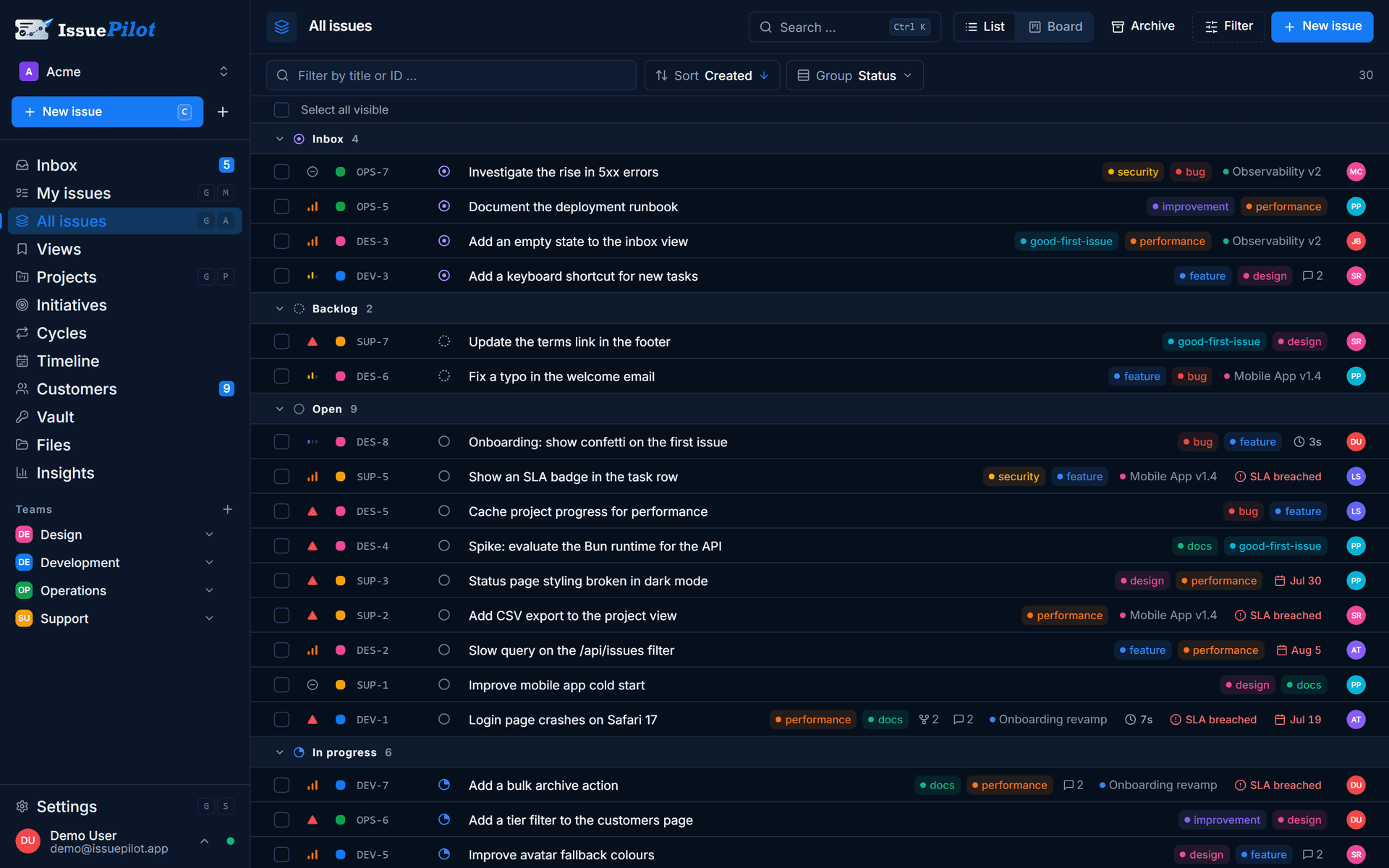
There are no automatic summaries, no suggested priorities and no assistant chiming in uninvited. What there is, is the door: you bring your own AI and decide how far in it gets. If you are looking for a tool that generates text on its own, you are looking for something else.
Related: Security & privacy · Apps & extensions · Pricing
Common questions
Questions about AI access.
Under Settings → AI access you create a key and choose its permissions. The key is then shown once, together with ready-to-copy instructions for Claude Code, .mcp.json, Claude Desktop and Claude in the browser. The connection runs over the Model Context Protocol (MCP) — nothing to install, no environment variable to set.
Connect your AI in a few minutes.
30 days of Pro, free — create a key, tick the permissions, copy the instructions. No credit card.
Three fields · No credit card · Cancel monthly
- Servers in Germany
- GDPR-compliant
- Built in Germany
Still got a question? Write it down